In the last post I looked at building a thermometer that showed the temperature and humidity of a room through the use of a color display that indicated the relative comfort level of the room, using an Arduino and a couple of extra components.
While the thermometer worked quite well, it really did just look like just a bunch of wires that glowed. To have it be part of polite society, it needed to be dressed in more appropriate attire.
Since the circuit is a fairly compact design, the thermometer would lend itself well to being housed a fancy box that could look pretty sitting on a shelf. On a recent clean-up of the shop I noticed that I had few pieces of red cedar and popular sitting in the scrap bin. I always liked the look (and the smell!) of red cedar so I always try to avoid throwing of it out on the off chance I had use for it. As luck should have it, the scrap pieces looked to be a good size to house the Arduino.
Designing The Case
With my source materials acquired, I set about designing my enclosure. Basically the enclosure had to:
Of course contain the Arduino, Temperature sensor and the LED strip.
Have a way to mount the LED strip so that it seamlessly integrates into the case
To do that I decided that the case should have a slot cut into it to mount the LED.
To add a bit of a diffusion to the LED's the slot would also be cut to accommodate a plastic strip to mount in front of the LED's
Provide proper air flow so that the temperature sensor can properly detect the room conditions
Be simple, basically the case should just be a your basic box.
With the criteria defined and based on the wood I had on hand, I sketched out a quick design
Bill of Materials
Two 1x4x6.5 inch pieces of popular
Two 1/4x4x6.5 pieces of red cedar
One 1/8x3/4x6.5 piece of clear acrylic
Frosted glass paint
Wood glue
Furniture felts
Small rubber grommet
Tools Required
Table saw
Router with a 3/4 inch straight bit
Wood clamps
Drill Press
Glue
Case Assembly
I started off by cutting out the 4 pieces of wood that will be used to make up the case
Next I marked out the cavity that will be used to house the Arduino and sensor on the two popular pieces and routed out the cavities
Once everything was cut out, I then glued the two Poplar pieces together along with one of the Red Cedar pieces (which will serve as the top for our case)
Once the glue hard dried. I next had to put in a grove near the top of the case. To do that I took a 3/4 inch straight bit on my router and I cut a 1/2 inch deep groove about one inch down from the top of the case along the front. This groove needs to be deep enough to accommodate the LED strip and the 1/8 inch thick acrylic strip.
One problem that I found with the groove is that I did have it come out of the sides of the case which didn't really look very good as far as I was concerned so I really wanted to have it look a little bit better.
To solve that I cut out and glued in a couple of red cedar "plugs" to fill the ends of the grooves but still left some space on the end for the acrylic strip to be flush against the front of the case.
At this point, the main part of the case is now assembled.
Perfect time to give every a quick sanding to neat everything up.
With the groove in place I next cut a 3/4 inch wide strip of acrylic and cut it to the length of the case.
After a quick test fit to the case (and some trimming to make it fit better) I then gave the strip a coat of glass frosting paint to get a more diffused look when the LED's are lit.
To complete the construction of the top part of the case I finished off by drilling in a few vent holes so that I could have some air flow for the temperature sensor.
Installing the Innards
The next step in the process was to put all the electronic bits into the case. I started off by looking at what would be best way to mount the Arduino. To do this, I decided on mounting it to the remaining piece of red cedar that I hadn't yet glued to the case.
After doing a test fit of the Arduino to the bottom plate I determined what would be the best place to mount the Arduino I then cut out and glued a couple of wooden rails to the red cedar, which would serve as a mounting point for the Arduino.
Once the glue dried, I then mounted the Arduino to the base with a few screws.
The next thing to do was to mount the temperature sensor into the case. Since I drilled the ventilation holes into the top of the case, it makes the most sense to have the sensor mounted as close as possible to the vent. To do this I glued another small wood block to the top of the case and attached the sensor to the block.
Finally I mounted the LED's into the groove that I had earlier cut, luckily the groove also opened up an access to the internals of the case, so the wiring for the LED was pretty easy to feed through
I glued the LED strip in place followed by the acrylic strip
With all the various components mounted the next step was to wire everything up and buttoning up the case.
One thing I failed to note was how I planned to power up the Arduino once it was sealed up.
To power the Arduino, I chose to power it through the Arduino's USB connector, which will also give me an opportunity to do any tweaks to the programming that I might want to do in the future.
To provide power access, I usually would drill a half inch hole into the back of the case, but as a lucky coincidence, one of my popular pieces had a knot that popped out that was the ideal size. So I fed the USB cable through the knot hole and used a rubber grommet to neatly cover the hole.
Finally I glued the rest of the case together
I finished up the job with some varnish and after installing some felt pads on the bottom, the project is done!
At the moment the thermometer is still on my desk here at work giving my a nice visual interpretation on the office climate. It's certainly been a bit of a conversation piece.
Next month, I going to revisit a topic that I first posted about a few years ago.
This month I wanted to get back onto more "hands on" stuff that was more based in the real world than the virtual one. When looking around for ideas, I found a small stash of Arduino Uno's that I got from my Creation Crate subscription a while back (by the way - I highly recommend them - the neat little projects I got each month were a lot of fun to put together - and I learn quite a lot on what the Arduino is capable of) so I wanted to find a unique project that I could make with and Arduino and whatever components I could find lurking around the workbench.
Rooting around, I came across a roll of NeoPixel programable color LEDs. These are pretty neat since you can do a lot of different light effects and you could program it so that individual LED's on the strip to light up. The original reason I had that roll was for a clock project that didn't quite pan out the way I wanted it to go.
I also came across a DHT11 module, which is a small temperature/humidity sensor that feeds its data through a single wire data feed.
So, with those 3 items, the obvious solution is to put together a thermometer that displays the temperature and humidity in the room as a color display.
Since the LED's and the sensor are digitally controlled, it really makes for a simple circuit to put together - basically I just need to plug the components directly to the Arduino's power outputs and digital inputs and some fairly straight forward Arduino code should handle the rest.
The basic premise of the project is to be a smart weather display that automatically changes light patterns based on the temperature and humidity in the room. The temperature sensor continuously monitors the air conditions and then creates different colorful lighting effects on the LED strip to show what the weather felt like.
Showing The Room Conditions
To properly visualize the room conditions I really needed to come up with an appropriate color effect that reflected how it felt in the room.
After some playing around with the NeoPixel, I came up with the following patterns:
Cold and Damp (Under 15°C with high humidity over 40%)
Effect: Cool Blue Pulse
The lights glow in cool blue tones that slowly pulse brighter and dimmer
Represents the feeling of being underwater or in a cold, misty environment
Creates a calming, cool atmosphere
Hot and Dry (Over 25°C with humidity under 70%)
Effect: Fire Flicker
The lights flicker in red, orange, and yellow colors like real flames
Each light changes randomly to create a realistic fire effect
Represents the dry heat of a desert or fireplace
Comfortable Conditions (15-25°C with moderate humidity 40-70%)
Effect: Calm Green Breathing
Soft green lights that slowly fade in and out like gentle breathing
Creates a peaceful, natural feeling
Indicates ideal living conditions
Hot and Humid (Over 30°C with high humidity over 70%)
Effect: Storm Swirl
Purple and magenta colors that swirl and move along the strip
Creates a chaotic, energetic pattern
Represents the unsettled feeling of hot, sticky weather
All Other Conditions
Effect: Rainbow Cycle
A smooth rainbow pattern that continuously moves along the strip
Shows all colors in a pleasing sequence
Acts as the default display when conditions don't match the other categories
The lighting effects are intended to be intuitive - cooler colors for cooler conditions, warmer colors for hotter conditions, and special effects for extreme or unusual combinations of temperature and humidity.
Now that I have the effects that I wanted to have to represent the conditions in the room, that next step is to start putting things together
Components
To start the project, I collected the following times
Temperature and Humidity Sensor (DHT11)
A small electronic sensor that measures how hot or cold it is and how much moisture is in the air
Takes readings every few seconds automatically
Connected to your Arduino microcontroller
LED Strip (NeoPixels)
A strip of colorful lights that can display any color
For this project I'll use a string of 7 LED's
Each light can be controlled individually
Can create smooth animations and effects
Arduino Uno Microcontroller
The "brain" that reads the sensor data and controls the lights
Technical Details
Temperature Range: Celsius measurements are to be used
Humidity Range: Measured as relative humidity percentage (0-100%)
Update Speed: The lights on the NeoPixel update every 20-80 milliseconds depending on the effect
Power: The thermometer will runs on standard Arduino power (5V). In particular I plan on running the Arduino off the USB connector, which will allow me to apply future software updates.
Installation: I am planning on enclosing the thermometer in some sort of case, but it will need to be able to have access to power and good air circulation for accurate readings.
Wiring It Up
With the components all collected, I looked at how to connect everything up.
In reality, connecting all the components together are pretty straightforward.
Connections to the Arduino are:
The positive connection from the LED was connected to the +5 port
Data line from the LED was inserted to the D6 socket
Ground on the LED was inserted into one of the Ground sockets
Positive connection from the DHT11 was put into the Vcc socket
If you're more picture oriented, I've also included a handy schematic diagram below
Writing The Code
With everything all connected, the next step is to tell the Arduino to start monitoring the output of the DHT11, check the readings it got against the display rules that I defined earlier and tell the NeoPixel LEDs to display the appropriate color display.
The Arduino checks the temperature and humidity continuously and updates the light display in real-time. The effects needed to be smooth and change gradually as the environmental conditions changed.
To get everything to work, I put together the following program and uploaded it up to the Arduino:
Once the code was uploaded, the LED's started doing their thing. To get a sense of what the effects look like, I've attached a quick video that showed all the available light effects.
At this point I had a working prototype of a color thermometer and I really like the effects that are being produced. I did have to tweak the settings a little to remove some of the gaps in the temperature and humidity rules in order to cut down the cases where it defaulted to the rainbow effect.
As of now, while the lights are pretty cool, it's basically just a lump of glowing wires, so to make it really practical I need to properly house it.
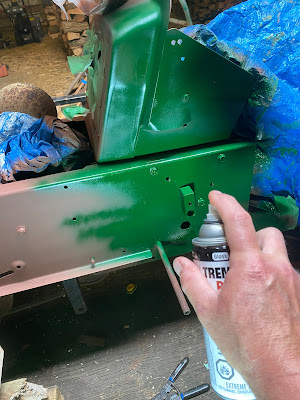
Now that all the painting was done and everything was nice and shiny, the big day had arrived.
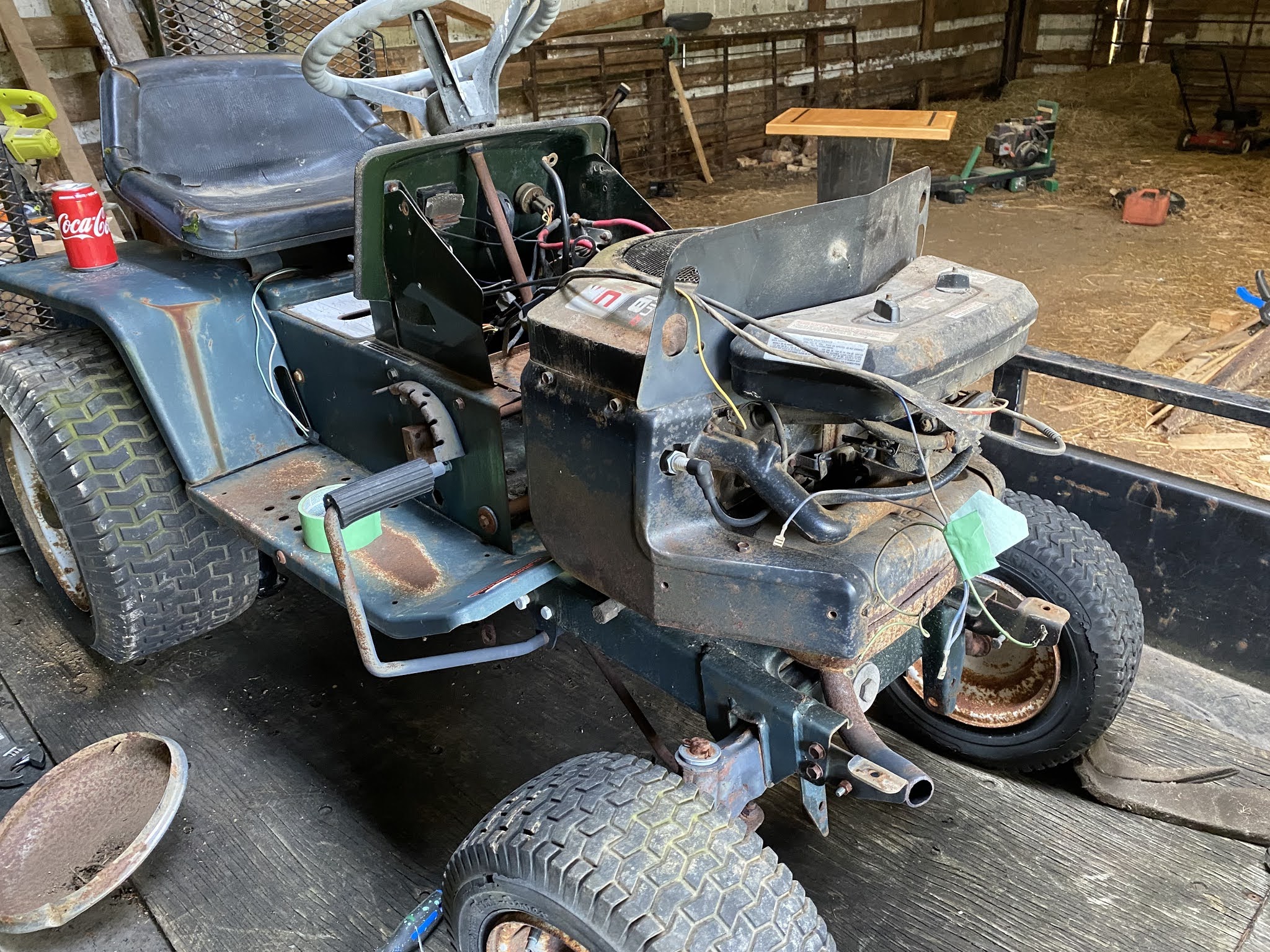
I could finally put the tractor back together.
Reassembly in of itself was pretty straightforward. It was after all a matter of bolting the bits that I had removed earlier back onto the tractor's frame and reconnecting the remaining electrical components, mainly the headlights.
Yes, it's been a little while since the last update. This fall I started a new job which has taken a fair bit of my time as of late, and just life, in general, has been making its presence known. In particular, I have noticed quite a significant uptick in requests for some of my laser engraved signs. So I have been spending quite a bit of time in the shop, just not enough time for writing it seems...
Now that I have my excuses out of the way, it's now time to focus on the next chapter of bringing my basket case tractor back to life.
With the engine all squared away, I now could focus on the other parts of the tractor. One part that I had noticed when I was bidding on the tractor was that one of the rear tires was horribly cracked and in dire need of replacement.
I did some pricing on a new tire for this size of tractor, and I was absolutely floored at the price - basically, I was literally doubling the value of my tractor by installing a new tire. Well, I couldn't really use the tractor without it, so I held my nose and soon a new tire was on its way.
While I was waiting for the tire to arrive, I decided that I should at least prepare for it by removing the rear wheel from the tractor, remove the old tire and perhaps freshen up the rim with a fresh coat of paint,
Little did I know that I was in for the most frustrating part of the whole tractor rebuild.
In my last post, I just successfully removed the old engine from my basket case garden tractor, which left a fairly large empty space in my tractor's front. While that made the tractor a possible candidate as a soapbox racer, I really needed to replace it with another engine.
Last week I dragged home an old garden tractor that I had picked up at an auction for around 100 dollars.
In some respects, this old tractor was a bit like Charlie Brown's Christmas tree. It certainly didn't look very good, but if you looked at it hard enough, you could see something that could really be something special, perhaps all it really needed was just a little bit of love.
One thing that it did need for sure was some engine work. The tractor had a vertical twin-cylinder Briggs and Stratton engine on board that seemed to turn pretty easily and showed some signs of compression when I turned the engine over by hand at the auction.
Last week, I talked about my neverending frustration in keeping the blades on my surface planer nice and sharp, which was creating a situation where my favorite tool was quickly becoming my most hated tool.
After searching in vain for an off-the-shelf sharpener, I quickly came to the realization that I needed to make my own tool if I ever wanted to sharpen my knives. Thankfully, I found out online that many people had the same issue that I had, and I was able to find many tutorials on how to build a jig that should make sharpening knives quick and easy.
I found that everyone had their own special approach to building their jigs, all with varying degrees of complexity. Most jigs were designed so that they would be able to handle a variety of different-sized planer knives, so often they had built-in locking features that locked the knives in place as you sharpened them.
In my own particular case, I am always going to use the same size knife in my planer, so I didn't really need to have a jig that needed to accommodate different blade types, which meant that my jig should be fairly simple to build.
Last week I started building an enclosure for my 3018-PROVer router and I finished the week with the bottom or "tub" of the enclosure built.
This week I focussed on building a lid for the enclosure to keep the noise and dust down while the router was in operation.
As I mentioned last week, I wanted to make the enclosure a bit like a clamshell with a shelf at the top to install the off-line controller box and a bit of a lip at the bottom to help keep the sawdust inside the enclosure.
I've always been a bit fascinated by the weather. If you take a look at some of my past posts on this site, you will find the odd little project that either entails tracking the weather conditions or using something weather-related (usually solar-powered) to drive some sort of device that I've dreamed up.
As a kid, my grandmother had a few whirligigs in her backyard that performed some sort of activity whenever the wind blew. More of them performed some sort of crude animatronic action, like making a lumberjack saw a log or a donkey kicking a bucket over, I was fascinated by the concept that some invisible force was making all this happen.
In subsequent years, I did some experimenting by hooking up a fan blade to a stepper motor and a LED and watching the wind create the power to light up the LED, but I couldn't really something really tangible to apply it to.
I hadn't really thought too much of it for a while until I recently found a plan for a pretty simple-looking duck whirligig in an issue of Popular Mechanics that was published back in 1940.
With the snow starting to recede in my part of the planet, the mind starts having visions of warmer weather activities. In my particular case, I love to spend a weekend afternoon out in my boat with a pole in my hand, trying to determine if there was anything hungry for worms in the water beneath me.
When out in the boat, it is vitally important (in fact it's the law in my country) to have certain safety equipment on your boat at all times. Besides the usual life jackets, flashlights, and tow ropes, you are supposed to have some sort of sound signaling device. In the little safety kit that I bought for my boat, that came in the form of a small whistle that you are supposed to blow into to signal for help.
Personally, I found the whistle a bit lacking in the sound volume department, but to be quite frank, installing an air horn on a small 14-foot boat with an outboard motor seems a bit ridiculous.